
How to Recover Deleted Apps from Fire TV: Step-by-Step Guide

I've reinstalled apps on more Fire TV Sticks than I can count, and the panic when an app vanishes overnight is always the same. You assume it's gone forever, then you realize Amazon kept it in a library the whole time.
Here's how to recover deleted apps from Fire TV in 5 steps or less, plus the setting that quietly deletes apps without your permission.
How to recover deleted apps from Fire TV: TL;DR
Why apps disappear from Fire TV in the first place
You rarely delete a Fire TV app on purpose. Auto Offload, a storage-saving feature, removes apps you haven't opened in a while to free up space for new downloads.
Users on Reddit report entire rows of sideloaded apps were suddenly wiped even with Auto Offload supposedly turned off, which points to Fire TV's storage management as the likely culprit rather than user error.
Sometimes Fire TV never actually removes the app at all. A software update just hides it or bumps it off the home screen, and it still runs fine from Manage Installed Applications. Before you delete an app on Fire TV yourself and try to force a clean reinstall, rule out these quieter causes first.
{{cta-jeopardy}}
What you'll need before starting
You only need a few things to recover deleted apps on Fire TV:
- A Fire TV Stick, Fire TV Cube, or Fire TV–powered smart TV
- Your Fire TV remote
- The Amazon account you originally used to download the app
- A stable internet connection
If the app was free or came from the Amazon Appstore, your account remembers it even after you remove it. Amazon treats "purchased" as permanent for paid apps and subscriptions on your account too, so reinstalling costs nothing extra.
Step 1: Check if the app only moved or hid
Before you chase a full reinstall, confirm the app actually left your device.
Follow this path:
- From the Fire TV home screen, press Home, then move to Settings.
- Select Applications, then Manage Installed Applications.
- Scroll through the full list of installed apps.
If the app shows up here, it never left your Fire TV. It just dropped off the home row, which happens after updates or when an app closes, and the launcher reorganizes your row of icons, similar to how closing apps on Fire TV shuffles what shows up front.
Select the app from this list, and it opens normally, no reinstall required.
Note: If Manage Installed Applications doesn't list the app, it's genuinely gone; move to Step 2.
Step 2: Open the Appstore and find "Your Apps & Subscriptions"
Amazon keeps a running record of everything you've ever downloaded, tied to your account rather than your device.
Here's how to reach it:
- Press Home, then scroll to the Apps or Appstore section in the top menu.
- Open the Appstore and scroll down to Your Apps & Subscriptions, sometimes labeled Library or Cloud or Your Apps & Channels, depending on your Fire OS version.
- Look for a toggle or tab that separates "Installed" from "Not Installed" apps.
- Select "Not Installed" to see every app you removed, or that fell off your device.
This library exists specifically so you can always recover deleted apps. Auto Offload can pull an app off your device, but that app still waits here for a single tap to come back.
Note: If you don't see a Cloud or Library tab, check that you're signed into the same Amazon account you used originally. A mismatched account hides your full app history.
Step 3: Search directly for the app name
If scrolling through the library feels slow, searching by name gets you there faster.
Try this instead:
- From the home screen, select the magnifying glass search icon.
- Type the app's name using the on-screen keyboard or Alexa voice search.
- Select the app from the search results.
A "Get" or "Download" button next to the app confirms Amazon still has it linked to your account. If the button says "Open" instead, Fire TV never actually removed the app, and you're looking at a phantom disappearance from the home screen.
Note: Voice search through Alexa works well here if the app name is hard to spell or type on a remote.
Step 4: Select the app and reinstall it
This is the actual recovery step, and it takes seconds once you've found the app.
Do the following:
- Highlight the app from either the search results or Your Apps & Subscriptions (or Your Apps & Channels).
- Press Select on your remote.
- Choose "Download" or "Get" to start the reinstall.
- Wait for the progress bar to finish.
The app reappears in Your Apps & Subscriptions (or Your Apps & Channels) on your home screen, right where it sat before. Your account automatically carries over any paid apps and in-app purchases, so you don't pay again for anything you've already bought.
Note: Slow Wi-Fi stretches this step out. If the download stalls, check Settings > Network and confirm your connection before retrying.
Step 5: Turn off Auto Offload so it doesn't happen again
Recovering the app solves today's problem. Stopping Auto Offload solves the recurring one.
Handle it this way:
- Go to Settings, then My Fire TV.
- Select About, then Storage.
- Find Auto Offload and switch it to Off.
- Or, Settings > Applications > Auto Offload > Off.
With this setting on, Fire TV automatically removes apps you haven't opened recently once storage runs low, and it does this without asking. Turning it off means your apps stay put until you decide to remove them.
Note: If storage stays tight after turning this off, manually clear cache from unused apps under Manage Installed Applications instead of letting Fire TV pick what to remove.
Common mistakes that waste time
A few habits make app recovery harder than it needs to be.
What to avoid:
- Assuming a missing icon means you lost the app for good: Check Manage Installed Applications first. An update often just hides an app rather than removing it.
- Signing into the wrong Amazon account: Your app library follows your account, not your device. A second Fire TV or a re-registered account shows an empty library even though your apps are safe.
- Ignoring Auto Offload: Leaving this setting on guarantees you'll repeat this whole recovery process within weeks, especially with several Fire TV apps installed at once.
- Removing and redownloading sideloaded apps the same way: Custom APKs and other apps you sideloaded outside the Amazon Appstore skip Your Apps & Subscriptions (or Your Apps and Channels) entirely, so you need to reinstall them from their original source.
Keep your Fire TV app list stable going forward
Once your app comes back, a couple of habits keep it from disappearing again.
Check storage occasionally under Settings > My Fire TV > About > Storage, and clear cache on apps you rarely use instead of removing them outright. Update your Fire TV software regularly too, since outdated Fire OS versions sometimes mishandle Auto Offload and remove apps unpredictably.
A stable lineup of Fire TV games and streaming apps stays that way only if you manage storage on your own terms instead of letting the system decide.
Bring the whole room into your next Fire TV session
Learning how to recover deleted apps from Fire TV gets your setup back to normal. The Weekend Games app gives that setup something worth defending.
Weekend turns your Fire TV into the center of game night, with everyone's phone or remote working as a controller while the action plays out on the big screen. No app-hunting, no reinstalling, just games that pull the whole room in.
Games inside the Weekend app:
- Jeopardy! puts your group through the same clue-and-response format as the show, straight from your couch.
- Song Quiz has everyone racing to name the track and artist before the room turns into a sing-off.
- Wheel of Fortune sends players calling out letters and chasing wedges before someone else solves the puzzle first.
- Wit's End uses a live game master to build a chaotically fun fantasy campaign around your group's choices.
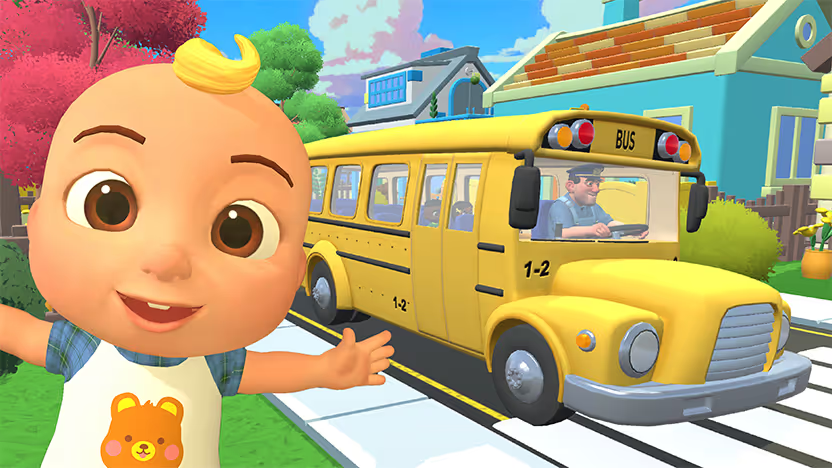
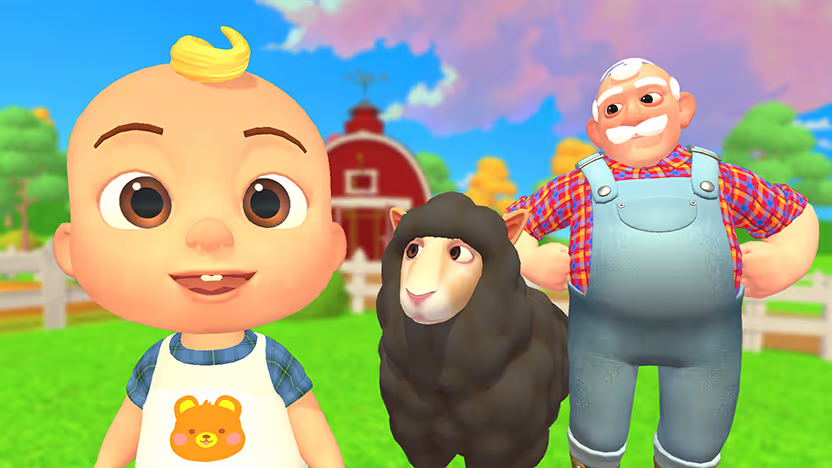
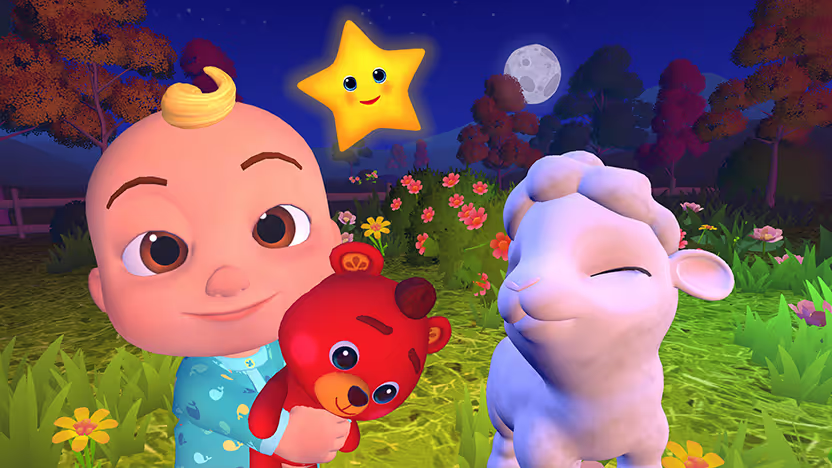
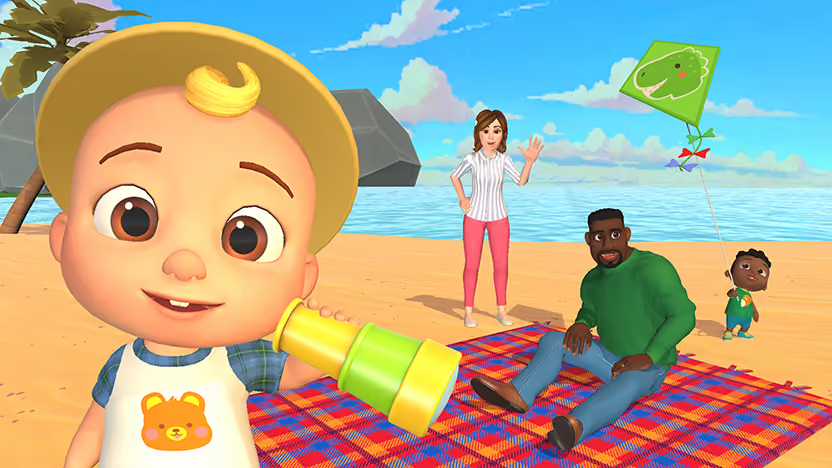
- CoComelon: Sing & Play with JJ turns the living room into a sing-along for toddlers and preschoolers.
- Spot On drops your pin on the globe and races you against friends and family through landmarks, cities, and trivia.
- Guess the Emoji has everyone trying to decode strings of emojis into movies, songs, and pop culture references for a fast, giggly round.
- Sketchy AF has everyone shouting guesses as a mystery doodle draws itself stroke by stroke on screen.
- Meme Supreme lets the room vote for the funniest meme match in each bizarre scenario.
Weekend also runs on Roku, Samsung, and LG smart TVs beyond Fire TV. Try Weekend Games free for 7 days and give your next weekend an actual centerpiece.
FAQs
How do I recover deleted apps from Fire TV without losing my data?
Reinstalling through Your Apps & Subscriptions (or Your Apps & Channels) restores the app itself, but in-app data depends on whether that app syncs to a cloud account of its own, like a streaming service login, separate from your Amazon account.
Why do apps keep disappearing from my Fire TV Stick?
Auto Offload causes most of the disappearing acts. This setting removes apps you haven't used recently to save storage space, and turning it off in Settings > Applications usually stops the pattern.
Can I recover an app if I don't remember its exact name?
Yes, you can browse Your Apps & Subscriptions (or Your Apps & Channels) in the Appstore instead of searching by name, since this section lists every app tied to your account whether or not you remember the exact title.
Does recovering an app cost money again?
No, recovering an app doesn't cost money again if you already purchased it, since Amazon treats app purchases as permanent and lets you redownload them for free through your account.
Do I need to recover any apps to use Weekend on Fire TV?
No, you don't need to recover any apps to use Weekend on Fire TV, since Weekend installs directly from the Fire TV Appstore and stays put unless you choose to remove it. Amazon exempts apps with active subscriptions, like Weekend, from Auto Offload, so it won't get silently removed the way an unused free app might.
How can I get the Weekend Games app on my Fire TV?
You get the Weekend Games app on your Fire TV by opening the Appstore, searching "Weekend Games," and selecting Download, so it installs like any other app without touching your Developer Options or Auto Offload settings.









%20(1).png)
%20(1).png)
%20(1).png)

Free for 7 days. Cancel anytime.


