

.avif)
.avif)
.avif)
Fire TV apps not working in the middle of movie night is the quickest way to turn everyone relaxing into everyone side-eyeing the screen in awkward silence.
This guide is the exact fix‑it routine I use now, so you can run through a few quick checks, tap a couple settings, and get your apps back without rage‑resetting the whole TV or ordering a new stick in frustration.
What you’ll fix in this guide
In this step‑by‑step walkthrough, you’ll:
- Test and reset your network
- Restart your Fire TV properly
- Force stop and close Fire TV apps that are stuck
- Clear cache and data for misbehaving apps
- Update Fire TV apps and Fire OS
- Reinstall specific apps like Weekend
- Deal with unknown apps on Fire TV and clean up storage
The whole process usually takes 10–20 minutes, and you can stop as soon as things start working again.
What you need before you start
Before you dive in, grab:
- Your Fire TV remote with working batteries
- Access to your Wi‑Fi router or modem
- Your Amazon account login
- Any usernames and passwords for apps, like Weekend, in case you clear data
I also keep my phone nearby so I can test the internet separately. That way I know if the problem lives on the Fire TV or in my network.
Fire TV apps not working? A 5-step guide
Follow these steps in order. If the apps start working again, you can stop there and save the deeper steps for next time.
Step 1: Check your internet connection
Most Fire TV app problems start with weak or unstable Wi‑Fi, so rule that out first.
Start here:
- On your Fire TV, go to Settings > Network, highlight your Wi‑Fi, and press the Play/Pause button to test it.
- Confirm the signal strength says “Good” or “Excellent,” and try streaming something on your phone or laptop on the same Wi‑Fi.
- If you see weak signal or connection errors, unplug your router for 10 to 30 seconds, plug it back in, wait for Wi‑Fi to fully return, then run the network test again and try your app.
If the internet still struggles, fix that first. No amount of Fire TV tweaking will help if the connection keeps dropping.
Step 2: Restart your Fire TV and force stop the app
Once I’m happy with the Wi‑Fi, my next move is a full restart plus a hard close on the problem app.
Follow this sequence:
- Restart the Fire TV from Settings > My Fire TV (or Device and Software) > Restart, or by holding Select + Play/Pause on the remote for about 5 seconds, or by unplugging the device or TV power cable for 30 to 60 seconds and plugging it back in.
- After the restart, go to Settings > Applications > Manage Installed Applications. Select the misbehaving app and choose Force Stop.
- Press Home, then open the app again from the main row.
A clean reboot plus a force stop clears small glitches and shuts down stuck background processes without changing your settings.
Step 3: Clear cache and data, then update the app
If a restart doesn’t calm things down, I start cleaning up the app itself by clearing cache, then data, and only after that do I worry about updates.
I would:
- Stay in Settings > Applications > Manage Installed Applications, select the same app, choose Clear Cache, and confirm. Then go back Home and test the app.
- If it’s still broken, return to the app’s settings, choose Clear Data, confirm, then open the app again and sign in if prompted.
- From the Home screen, highlight the app tile, press the Menu (three lines) button, select More Info, and hit Update if you see it.
- To avoid repeating this later, go to Settings > Applications > Appstore and set Automatic Updates to On so apps like Weekend pull in fixes automatically.
Clearing cache removes temporary files, clearing data resets the app to a fresh install state, and updating the app fixes compatibility issues with newer Fire OS versions.
Step 4: Update Fire OS and reinstall the problem app
When more than one app feels off, I stop blaming individual apps and assume the system might be the problem, so I update Fire OS before I do anything drastic.
To update:
- Go to Settings > My Fire TV (or Device and Software) > About > Check for Updates, then install anything it finds and let the device restart.
- After the update, open a few different apps, including Weekend, to see whether things feel faster and more stable.
- If an app still misbehaves, go to Settings > Applications > Manage Installed Applications, select it, and choose Uninstall.
- Press Home, choose Find > Search, type the app name, select it, then choose Download or Get. Open it and log in again.
Updating Fire OS clears deeper system bugs, and a reinstall replaces corrupted app files and pulls in the latest version from the store.
Step 5: Free up space, remove unknown apps, and reset as a last resort
At this stage, I treat storage and random apps like usual suspects and clean house before I even think about nuking the device.
Go ahead and:
- Check space in Settings > My Fire TV (or Device and Software) > About > Storage. If it’s almost full, go to Settings > Applications > Manage Installed Applications and uninstall large or rarely used apps and games.
- Remove unknown or sideloaded apps you don’t recognize or no longer need, and turn off developer options if you’re done installing apps from outside Amazon’s store.
- If your Fire TV apps are still not working after everything above, go to Settings > My Fire TV > Reset to Factory Defaults, confirm, wait for the reset to finish, sign back in with your Amazon account, reinstall core apps like Weekend first, and test again.
A full factory reset sits in my back pocket as the “break glass” option, and I only use it when I’m fine with rebuilding everything from scratch to get a Fire TV that behaves like new again.
Common mistakes to avoid
Here are the missteps I see most often when people try to fix their Fire TV:
- Skipping the restart and jumping straight to extreme fixes
- Clearing data before trying cache, which forces unnecessary logins
- Ignoring updates because they seem optional
- Installing every random app and never checking storage
- Keeping sideloaded tools they don’t actually use
If you avoid those, you’ll usually fix things faster and keep your Fire TV more stable over time.
Weekend keeps your Fire TV fixes worth it
When you finally clear the glitches and Fire TV apps not working stops being the headline of your night, you want something fun to prove it was worth the effort. That’s where Weekend comes in, because it turns a fixed Fire TV into an instant game night with no extra hardware.
When you open the Weekend app on Fire TV, you’ll see a lineup ready to stress‑test your fixes in the best way:
- Wheel of Fortune, when you feel like spinning, guessing letters, and solving puzzles with the TV as your board
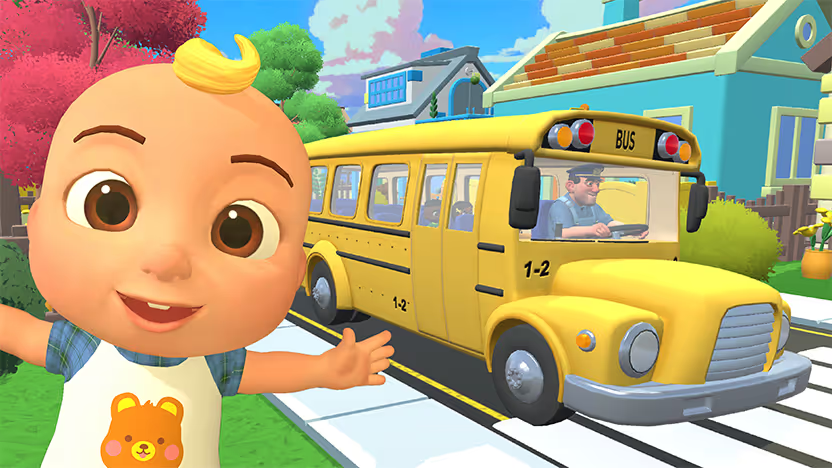
- CoComelon: Sing & Play with JJ, when you want gentle, music‑filled time that keeps little kids engaged
- Jeopardy!, when the whole room wants a true quiz‑show round with buzzing brains instead of buffering screens
- Song Quiz, when you want fast music battles that call out your song knowledge and your Wi‑Fi at the same time
- Guess the Emoji, when everyone wants to guess visual riddles
- Wit's End, when your group wants a chaotically fun fantasy story that reacts to every decision you shout out
- Sketchy AF, when you want a rapid‑fire race to guess each doodle before the drawing is done
- Spot On, when the group feels like traveling the world by dropping pins on a spinning globe
You can run Weekend on Roku, Fire TV, Samsung, and LG, so the same app follows you across living rooms and setups. One install turns your fixed Fire TV from “just a streaming stick” into a shared game screen with trivia, music, and family‑friendly picks all in one row.
Try Weekend with a 7‑day free trial and run through a few games right after you finish your troubleshooting. You’ll see exactly how your refreshed setup handles fast rounds, voice input, and full‑room energy before you decide to keep the subscription.
FAQs
Why are my Fire TV apps not working?
Your Fire TV apps are not working because something’s off with network, updates, or cache. I usually fix this by restarting Fire TV, clearing the app cache, and reinstalling the app if it still freezes.
How can I get the Weekend Games app on my Fire TV?
You can get the Weekend Games app on your Fire TV by opening the TV’s app store and searching for “Weekend Games.” I grab my Fire TV remote, hit Download, then pin Weekend near the top row so my family can launch games fast.
What’s the fastest way to reset a frozen Weekend app on Fire TV?
The fastest way to reset a frozen Weekend app on Fire TV is to force stop it and clear the cache. I go to Settings, Manage Installed Applications, pick Weekend, hit Force Stop, Clear Cache, then reopen to see if it loads cleanly.
Do I need to uninstall other apps when Fire TV apps stop working?
No, you only need to uninstall other apps when Fire TV apps stop working if storage is nearly full. I check storage in Settings first, then delete big games or old apps so Fire TV has room for Weekend and other core apps to run smoothly.
How often should I restart Fire TV to keep Weekend running smoothly?
You should restart Fire TV every 2–4 weeks to keep Weekend running smoothly, especially if the interface feels slow. I treat a restart like a quick tune‑up and run it any time apps start stuttering or menus lag more than usual.











%20(1).png)
.png)
.png)

Free for 7 days. Cancel anytime.


