

.avif)
.avif)
Knowing how to update apps on Fire TV keeps your favorite streaming and gaming apps fast, stable, and ready for movie or game night with your partner.
How to update apps on Fire TV: The quick version
Method 1: Open the Fire TV home screen
I always start on the Fire TV home screen because it shows the apps I care about and any new notifications in one place. When someone says, “My Fire TV apps are weird today,” the first move is pressing Home and seeing what the device looks like before touching settings.
Do this first:
- Press Home on your Fire TV remote and wait for the main screen to load fully.
- Check Your Apps & Channels for any exclamation icons, error banners, or apps that look stuck in “updating” or “queued.”
Method 2: Check for automatic app updates
By default, Fire TV can update apps automatically, so many people never touch settings at all. When I help friends who keep seeing outdated versions, the first fix is turning automatic updates back on so Fire TV quietly handles things in the background.
Use this quick check:
- Go to Settings > Applications > Appstore on your Fire TV.
- Look for Automatic Updates and switch it to On so apps update whenever Fire TV is online and idle.
Method 3: Update a single app from the Appstore
Sometimes you only care about one app, like a streaming service that keeps nagging you about updates. In that case, I go straight to the Amazon Appstore page for that app, update it manually, and test again before changing anything else.
Follow this routine:
- From Home, highlight the app tile you want, press the Menu button, and select More info or View details.
- On the Appstore page, choose Update if you see it; if it says Open or Get, the app already runs the latest version for your device.
Method 4: Update all apps automatically
When several apps misbehave or feel slow, I like to make sure everything is up to date instead of fixing them one by one. This works well after a long stretch of my Fire TV staying offline or missing normal update windows.
Use this “clean sweep”:
- Open the Appstore from the top menu, then go to the menu icon or Library section.
- Turn on Automatic Updates if it is off, and install any updates you see listed for individual apps.
Method 5: Fix stuck or stubborn app updates
Some apps refuse to update even when the Appstore says an update exists. When that happens on my Fire TV, I treat it like a stuck cache problem, instead of assuming the app developer broke something.
Run this short sequence:
- Go to Settings > Applications > Manage Installed Applications and select the problem app.
- Choose Force stop, then Clear cache (and Clear data only if you don’t mind signing in again).
- Return to the app’s Appstore page and see if the Update button appears; if it does, install it and then try relaunching the app.
Method 6: Fix “This app needs updating” errors
That “This app needs updating” message on Fire TV can appear even when the Appstore shows no update. When I see this, I treat it as either a version or Appstore issue, and sometimes an account or licensing mismatch.
Here is what usually helps:
- First, check for any Fire OS or Appstore updates in Settings and turn on Automatic Updates in the Appstore.
- Then, verify your login is the same Amazon account that originally “purchased” or installed the app.
- On the app’s store page, select Update or, if it is missing, uninstall and reinstall the app to refresh its install and account link.
Method 7: Update sideloaded and third‑party apps
Sideloaded apps are those installed via APKs and Downloader, and don’t update through the normal Appstore. On my own devices, I treat these like manual installs on a PC by bringing down a new version when I actually need it, or using a separate updater if I’ve set one up.
Use this careful approach:
- Find a newer, trusted APK version of the app from a reputable source on your computer or access it directly in Downloader.
- Install it over the existing app using Downloader or a file manager; if it fails, uninstall the old version first, then install the new one.
Method 8: Keep your Fire TV OS up to date
Even when apps are current, an outdated Fire OS version can cause crashes, missing features, or endless update prompts. When multiple apps start acting strangely together, I run an OS update before digging deeper into each app.
Do this maintenance:
- Go to Settings > My Fire TV > About and select Check for Updates or Install Update.
- Let Fire TV download and install the latest system version, then restart and check whether apps behave better.
Why staying on top of Fire TV app updates matters
Updated apps usually run smoother, launch faster, and support new features, while old builds get buggy or lose support. In my living room, keeping apps current also means fewer pop‑ups telling me “this app needs updating” right when everyone sits down.
For daily use, that translates into:
- Shorter wait times between pressing an app icon and seeing content load.
- Fewer crashes when casting, signing in, or switching between live streams and on‑demand videos.
{{cta-questions}}
Why Weekend belongs in your updated Fire TV lineup
When you know how to update apps on Fire TV, tapping into party apps like Weekend becomes the fun part instead of a tech chore.
Keeping Weekend current means trivia, music, and family games load quickly whenever the room wants to switch from watching to playing games on Fire TV.
Here is how an updated Weekend experience feels:
- Jeopardy! launches with fresh categories and smooth pacing, so the whole group can jump straight into shouting answers.
- Song Quiz pulls in the right music clips, keeps scoring accurate, and stays in sync with voice responses.
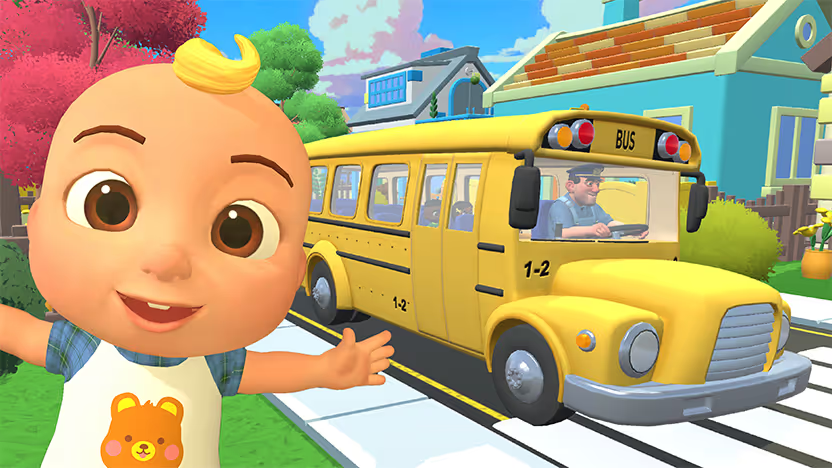
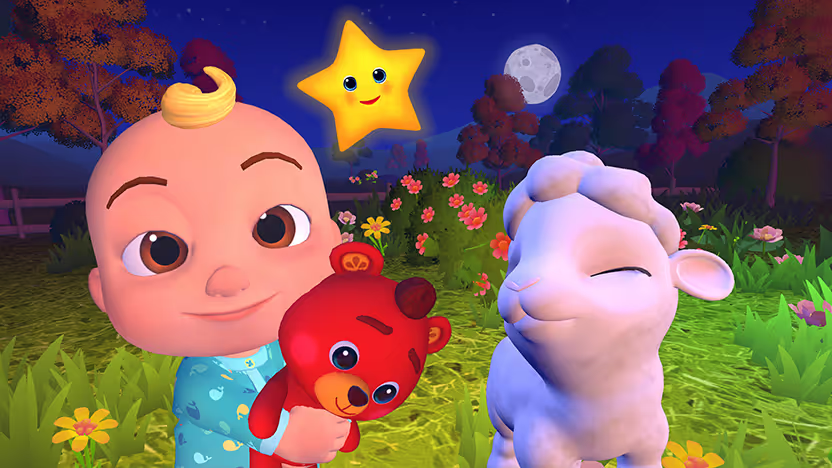
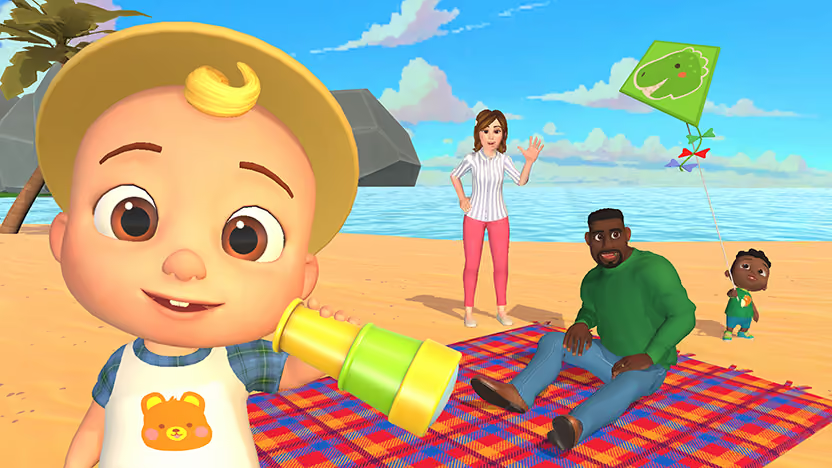
- CoComelon: Sing & Play with JJ stays responsive so kids can follow prompts, sing, and move without the app freezing.
- Wit’s End turns your TV into a fantasy adventure with an AI game master that builds a new story every time you play.
When Weekend and the rest of your apps stay updated, Fire TV feels like a single, reliable hub for streaming and game nights instead of a collection of half‑working shortcuts. Try us out with a 7-day free trial and see why we deserve to be a part of your lineup.
FAQs
How do I know if apps on Fire TV need an update?
You know apps on Fire TV need an update when they show errors, feel slower than usual, or appear in the Appstore’s Updates section. I check the store page for each problem app; if Update shows up, I install it and test again.
Can I force Fire TV to update apps automatically?
Yes, you can let Fire TV update apps automatically by turning on Automatic Updates in Settings > Applications > Appstore. I keep this on so Fire TV handles most updates overnight or when nobody is using it.
Why does my Fire TV say an app needs updating, but no update exists?
Fire TV can show “needs updating” when your account, region, or install state is out of sync. I sign into the correct Amazon account, then uninstall and reinstall the app so it refreshes its link to my library.
What are the best Fire TV games?
The best Fire TV games are titles that get people talking and competing, like Jeopardy!, Song Quiz, and 20 Questions. I see those games pull guests off their phones and into the same moment around the TV.
How can I download the Weekend app on Fire TV?
You can download the Weekend app on Fire TV by searching “Weekend” in the Appstore and selecting Get or Download. I then move it near the front of my apps, so starting a game night only takes a couple of clicks.









.png)
%20(1).png)
%20(1).png)

Free for 7 days. Cancel anytime.


