

.avif)

.avif)
Go from downtime to game time with my 4 simple steps on how to play games on Fire TV.
Step 1: Open the Fire TV home screen and Appstore
Starting from the Fire TV home screen keeps everything simple because you see streaming apps, games, and inputs in one place. During game night with friends, this is always where setup begins before anyone grabs snacks or phones. From here, the next stop is the Appstore.
Do this first:
- Press the Home button on your Fire TV remote and wait for the tiled home screen to appear.
- Check the right side for your usual apps or any game tiles already installed.
- Highlight Appstore (or the icon) at the top of the menu and press Select to open Amazon’s store.
Step 2: Find the Games section and pick your favorite
Inside the store, many people get distracted by movie apps before they even reach the fun part. When I set up Fire TV for my family, the first scroll is always to Games so everyone sees what’s available. Whether you want a single title or a hub with lots of choices, it all starts here.
Use this rhythm:
- On the Appstore screen, scroll down until you see Games or a similar row.
- Move right to browse icons, from simple puzzles and kids’ titles to game hubs like Weekend.
- Choose Weekend and begin playing fan-favorite titles like Jeopardy! and Song Quiz.
Step 3: Download the game (or app) and start playing
Once you highlight a game or hub, Fire TV shows the detail page where you seal the deal. I always double‑check the description and publisher here. It’s the best way to avoid installing random clones that look similar. After that, I launch the game right away so the crowd can jump in.
Follow this short sequence:
- Select the game tile to open its info page with screenshots, ratings, and the Get or Download button.
- Choose Get or Download and wait for the installation to complete.
- Press Open or return to Home, highlight the new game tile, and press OK to start playing.
Step 4: Play, organize, and keep your lineup fresh
Some Fire TV games use remote buttons, while others, like Weekend’s voice titles, let players shout out answers. After a few rounds, I move my favorite games to the front so no one has to scroll during the next hangout. Keeping things tidy helps the fun start faster.
Use this tidy-up routine:
- For button games, use the directional pad and Select to move and confirm.
- For voice games, follow on‑screen prompts with your remote mic or phone app.
- To rearrange or remove titles, highlight the game tile, press the Menu button (three lines), and choose Move to front, Move, or Uninstall.
Why I enjoy playing games on Fire TV
Fire TV started as my streaming box, but the game apps turned it into a quick “grab-the-remote-and-play” setup for the whole room. As I'm already sitting on the Fire TV home screen, having games there means I can forget about my console and PC for the night.
For my living room, that means:
- Kids can jump into simple games from the same screen they use for cartoons, with one remote.
- Adults can switch from live sports or movies to a trivia (Jeopardy!) or music game (Song Quiz) as soon as the room needs more energy.
{{cta-questions}}
Weekend is the premier Fire TV party app
Once you know how to play games on Fire TV, you can swap movies for shared game nights that start from the same home screen. Installing a game app like Weekend turns one remote click into an instant trivia or music showdown.
With Weekend on Fire TV, your TV becomes a group activity instead of background noise. You get quiz shows, music games, and family‑friendly titles that let people shout their answers out loud.
Adding a party‑game app to your Fire TV home row means you get competitive, high‑energy gaming whenever the mood strikes.
What you can expect from Weekend:
- Jeopardy! turns your screen into a shared quiz board where everyone shouts answers.
- Song Quiz plays short clips and challenges the room to name the song and artist first.
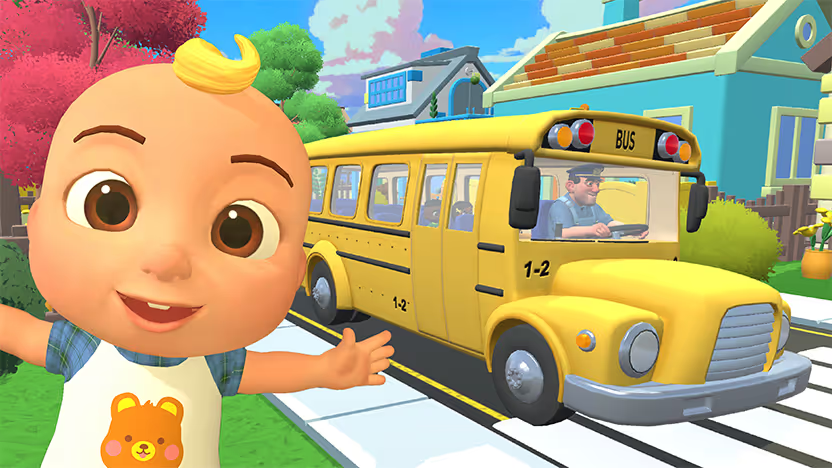
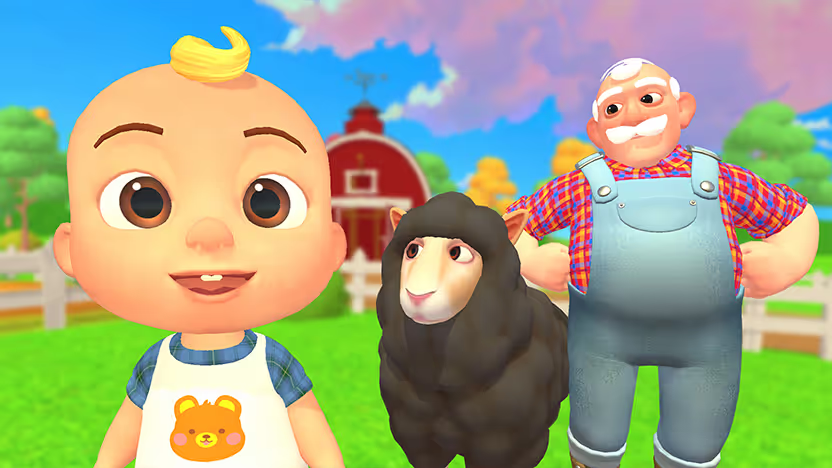
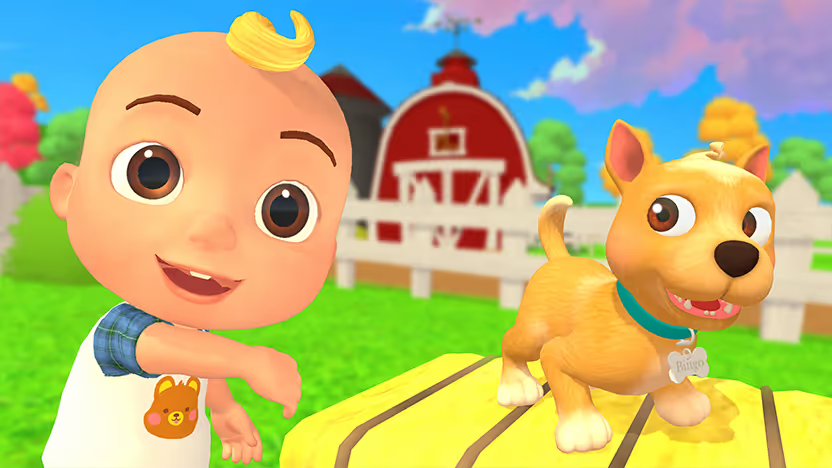
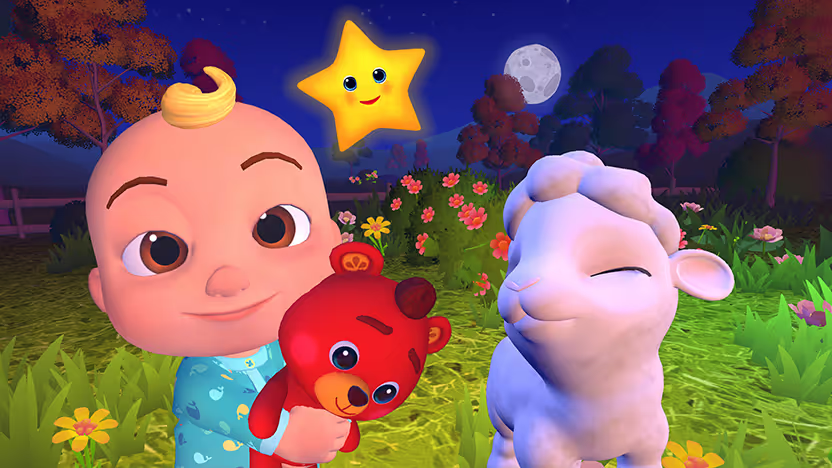
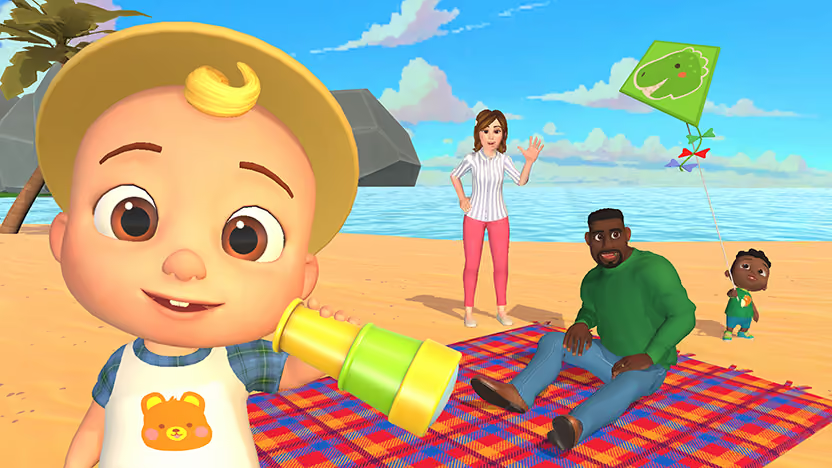
- CoComelon: Sing & Play with JJ turns the TV into a family-friendly play space where little ones can sing, move, and follow simple on-screen prompts together.
- Wit’s End turns your TV into a voice-powered fantasy adventure with an AI game master that builds entire stories around you.
Try Weekend on Fire TV with a 7-day free trial to explore the full library.
FAQs
Can every Fire TV model play Weekend?
Yes, Weekend works on most current Fire TV Sticks and Fire TV devices that can install apps from the Appstore. I always check the Appstore first; if I can add Weekend, then Fire TV is good enough for game night.
Do I have to pay to play Weekend on Fire TV?
Weekend on Fire TV offers a 7-day free trial so you can try Jeopardy!, Song Quiz, and more. Whenever apps have free trials, I like starting with the trial, seeing what my group replays, and only then deciding if a subscription feels worth it.
Can I use my phone as a controller with Weekend on Fire TV?
Weekend on Fire TV lets me use either the Fire TV remote or the Weekend smartphone app as the controller, so I can pick whatever feels easiest for the group that night.
How do you download Weekend on Fire TV?
You can download Weekend Games on Fire TV the same way you add any other app. I open the Appstore from the Fire TV home screen, search for “Weekend,” select the Weekend app, and choose Get or Download app to install it.








.png)
%20(1).png)
%20(1).png)

Free for 7 days. Cancel anytime.


