

.avif)
.avif)

When how to restart apps on Fire TV becomes the question, you’re usually staring at a frozen screen instead of the show or game you promised. Restarting means closing the app completely, clearing a few temporary files if needed, then opening it again from the home screen.
Fire TV doesn’t have a special “restart app” button, so I built one simple flow that actually resets the app.
How to restart apps on Fire TV: TL;DR
- Check the network first
- Exit to Home and relaunch
- Force stop the app
- Clear cache (removes temp files, keeps logins)
- Clear data (wipes settings and logs you out)
- Restart Fire TV
- Update apps and Fire OS
- Free up storage
- Remove unknown apps
That pattern works for any streaming or game app you rely on. Within a few uses, this same flow covers more than basic restarts.
When I force stop an app and clear its cache, I’m following the same steps you’d take before you update Fire TV apps, free storage, or deal with unknown apps on Fire TV that might be causing trouble.
Why it’s necessary to know how to restart apps on Fire TV
Most Fire TV app problems come down to a few causes. The app process gets stuck in memory, its cache picks up bad data, or the device has been on for days without a restart. Restarting the app clears that stuck state and gives it a fresh launch.
Fire TV doesn’t show a running‑apps list like a phone would. Instead, you control apps from the Settings menu, where you can force stop them and clear cache or data. That’s why “restart” means walking through Settings rather than tapping a restart icon.
When I think about restarts, I picture a ladder. First I exit and relaunch. If that fails, I force stop and clear cache. If several apps misbehave at once, I restart the whole device. The next sections walk through that ladder in order, so you always know the next step.
Step 1: Make sure it’s the app, not the internet
If Weekend or another app acts up, I first check whether the problem sits with Fire TV or with my network.
Here’s how I do it:
- On Fire TV, open Settings and go to the Network section
- Highlight your Wi‑Fi, press Play/Pause, and select Run Speed Test
- Look for a strong signal and a stable connection
- On your phone or laptop, try streaming on the same network
If everything struggles, fix Wi‑Fi first by rebooting your router or moving closer to it. Only after the network feels stable do I blame the app and move on to restart steps.
Step 2: Exit to Home and relaunch
If the internet looks fine, I start with the lightest restart: leave the app and open it again.
You can do it like this:
- Press the Home button to exit the frozen or sluggish app
- Wait a few seconds on the home screen so Fire TV can catch up
- Highlight the same app tile, like Weekend, and press Select to open it again
This quick move helps when an app feels slow, a menu hangs, or you hit a one‑off glitch. If it still freezes or closes itself, I climb to the next rung on the ladder.
Step 3: Force stop the app in Settings
This step acts as the real restart. It shuts the app down behind the scenes so your next launch starts from scratch. Force Stop is the real way you close Fire TV apps on this platform, since there’s no swipe‑away menu like on a phone.
Follow this path:
- From Home, open Settings
- Select Applications
- Choose Manage Installed Applications
- Scroll to the app you want to restart
- Select it and choose Force Stop; confirm if prompted
Once you force stop, the app no longer runs in the background. The next time you open it from Home, Fire TV loads a new session instead of trying to resume the broken one.
I think of this step as the core of restarting. Every other option either wraps around it or adds extra cleanup.
Step 4: Clear cache to give the app a clean start
If force stop alone doesn’t fix the issue, I clear the app’s cache. This removes temporary files that can break playback, menus, or game logic.
Here’s how:
- Stay in Settings > Applications > Manage Installed Applications
- Select the same app again
- Choose Clear Cache and confirm
- Press Home and open the app from the main row
Clearing cache keeps your logins and settings intact. It’s a safe middle ground and one of the easiest ways to refresh an app without extra hassle.
Step 5: Clear data only when problems keep coming back
If the app still refuses to cooperate, I consider a data reset. This acts like a fresh install and wipes out saved preferences.
Before you tap it, know that:
- Clear Data logs you out of the app
- It resets settings and downloads
- You’ll need your login details ready
To clear data:
- Go back to Settings > Applications > Manage Installed Applications
- Select the app and choose Clear Data
- Confirm the warning
- Press Home and open the app again, then sign back in
I only do this when the app crashes on every launch or never gets past its first screen. It’s powerful, so I save it for stubborn cases.
Step 6: Restart the whole Fire TV
Sometimes it’s not just one app. Menus feel slow, multiple apps glitch, and inputs lag. That’s when I restart the entire device.
You can use either method:
- Menu method
- Go to Settings > My Fire TV or Device & Software
- Select Restart
- Confirm and let the device reboot
- Remote shortcut
- Hold Select and Play/Pause together for about 10 seconds
- Release when the restart begins
After the restart, I open the app again and see if the behavior improved. If several apps feel better, I know the device just needed a break.
Step 7: Keep apps and Fire OS up to date
If an app constantly needs restarts, an outdated version might be fighting with the current Fire OS. This is where updates come in.
To update Fire TV apps:
- Highlight the app on the home screen
- Press the menu button on your remote
- Open More Info to see its store page
- Select Update if you see the option
To update Fire OS:
- Go to Settings > My Fire TV or Device & Software
- Open the About section
- Choose Check for Updates and install anything new
I treat these updates as maintenance. They reduce how often I need deep restarts and keep the best Fire TV apps like Weekend ready for game night.
Step 8: Free storage and delete Fire TV apps you don’t use
Low storage can break installs, updates, and restarts. If your Fire TV feels heavy all the time, it might simply be full.
Here’s the cleanup path:
- Open Settings > My Fire TV > About > Storage
- Check how much free space remains
- If it’s low, go back to Settings > Applications > Manage Installed Applications
- Pick apps you rarely open
- Uninstall them to delete Fire TV apps that just sit there
I prioritize removing old games or niche apps and keep heavy hitters like Weekend and core streaming services installed.
Step 9: Watch for unknown apps on Fire TV
If you’ve ever sideloaded apps or installed tools outside the Amazon Appstore, those can cause weird conflicts.
To tidy them up:
- Go to Settings > Applications > Manage Installed Applications
- Scan the list for names you don’t recognize or barely remember
- Select any app you don’t trust or use
- Uninstall it
- Restart Fire TV and test your main apps again
This step matters if you’ve experimented with utilities or testers that you later forgot about. Cleaning them out often reduces surprise crashes.
When restarts aren’t enough
Most of the time, this restart flow fixes the problem. When it doesn’t, I consider a few extra checks:
- Look up whether the app itself is having a service outage
- Reinstall the app completely from the store
- Treat a full factory reset as the last step if everything fails
You won’t need those often, but they’re there if things keep breaking no matter how many times you restart.
Weekend rewards the effort
Once you know how to restart apps on Fire TV, you want a reason to keep the device in good shape. For me, that reason is Weekend, because it turns a fixed Fire TV into a TV‑ready game night without extra hardware or cables.
When you open Weekend on Fire TV, you’ll see a lineup ready to test your fresh restart:
- Jeopardy!, when the room feels like a real quiz show with clues, categories, and bragging rights
- Song Quiz, when you want fast music rounds that call out song intros and artists in seconds
- Wheel of Fortune, when you’re in the mood for letter picks, spins, and big phrase reveals
- Wit's End, when your crew wants a story‑driven, unpredictable adventure that reacts to every choice you make
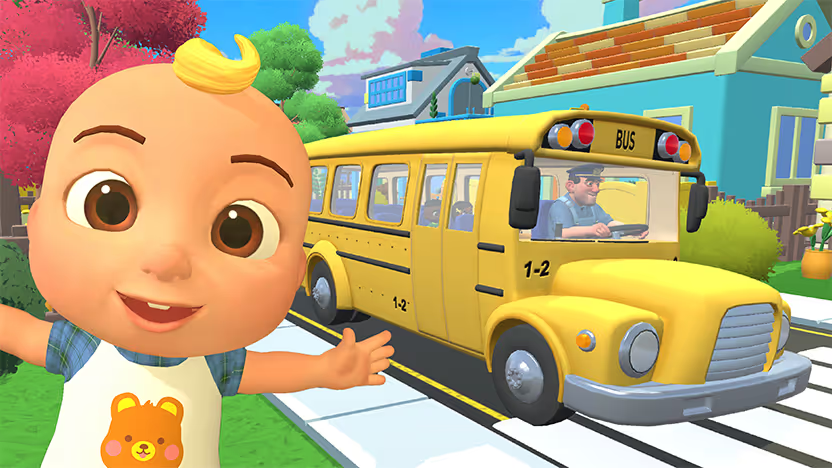
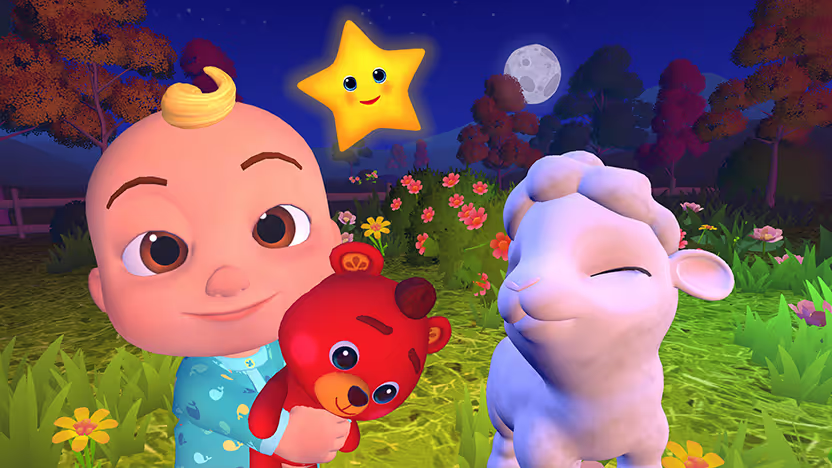
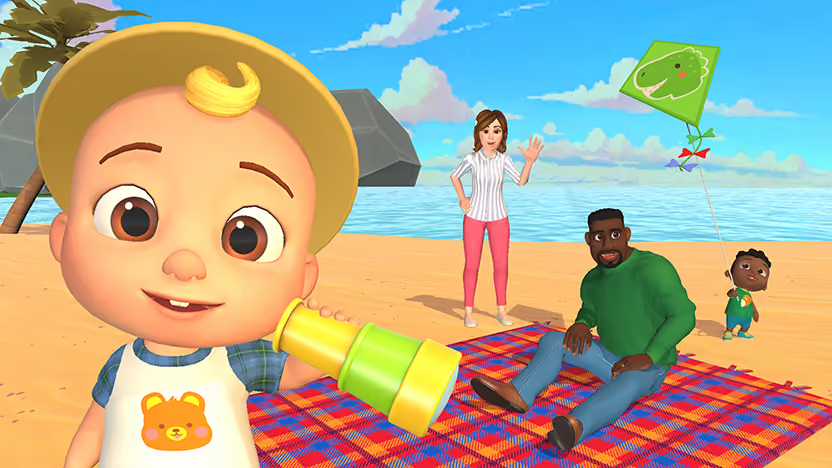
- CoComelon: Sing & Play with JJ, when you want gentle sing‑along time and movement with younger kids
- Sketchy AF, when you want a rapid‑fire race to guess each doodle before the drawing is done
- Spot On, when the group feels like traveling the world by dropping pins on a spinning globe
You can run Weekend on Roku, Fire TV, Samsung, and LG, so the same games follow you across living rooms without new remotes. One app keeps your trivia, music, and family‑friendly games in one place, so every restart routine has a clear payoff.
Try Weekend with a 7‑day free trial and run a few games right after you finish your restart steps. You’ll see how quickly the room moves from “why is this app frozen?” to “let’s play one more round” before you decide to keep the subscription.
FAQs
Why do I need to restart apps on Fire TV at all?
You need to restart apps on Fire TV because frozen or glitchy apps often stay stuck in memory. I notice that a force stop and cache clear fixes most short‑term issues without touching other apps or my profiles.
Does restarting an app delete my data or log me out?
No, restarting an app on Fire TV with force stop and cache clear doesn’t delete data or log you out. I only lose logins when I choose Clear Data, so I save that step for apps that crash every single time they open.
How is restarting an app different from restarting my Fire TV?
Restarting an app on Fire TV only resets that one app, while restarting Fire TV resets the whole device. I restart the app first, then reboot the device later if several apps and menus start acting strange at the same time.
What should I do when Fire TV apps aren’t working even after a restart?
When Fire TV apps aren’t working even after a restart, you should check updates and storage next. I often update the app, clear space, and remove unused apps before I consider reinstalling or doing a full factory reset.
Can Weekend help me test if my Fire TV fixes actually worked?
Yes, Weekend can help you test if your Fire TV fixes worked because it combines trivia, music, and voice‑controlled games in one app. I reopen Weekend after a restart, jump between a few games, and see if everything feels responsive again.
How can I get the Weekend app on my Fire TV?
You can get the Weekend app on your Fire TV by opening the Appstore and searching for “Weekend Games.” I usually hit Download, wait a minute, then pin Weekend near the top row so it’s ready for game night.












%20(1).png)
%20(1).png)
%20(1).png)

Free for 7 days. Cancel anytime.


